
Save a GIF from Pinterest to Your iPhone or Android
Saving a GIF from Pinterest to your phone can be harder than saving a regular image. Sometimes the file downloads as a still picture, while other times Pinterest may not show a direct download option.
But you can still save a Pinterest GIF on iPhone or Android by using the GIF link and a browser-based Pinterest GIF downloader. Here’s how to get the GIF onto your phone and what to do if it saves incorrectly.
Why Saving a GIF from Pinterest Can Be Difficult
Pinterest contains different types of media, and a GIF may not behave like a normal image Pin. The page you see can show animation, but the file behind it may be stored or delivered in a different format. That is why simply pressing and holding a GIF doesn’t always save the animated file you want.
Pinterest GIFs vs Regular Image Pins
A regular image Pin is usually a static picture such as JPG or PNG. A GIF contains multiple frames that play one after another, creating the animation you see.
When you save an image, your phone can usually store the picture directly with a Pinterest Image Downloader. With a GIF, you need to make sure the downloaded file keeps its animated format.
Why a GIF May Not Save as a GIF
A Pinterest GIF can sometimes be saved as an image preview instead of the actual animated file. It may happen when the page uses a preview image or when you save the media directly from the wrong part of the Pin.
Using the original Pinterest link gives you a better chance of getting the correct file.
Before You Start: Copy the Pinterest GIF Link
Before downloading anything, copy the link to the Pinterest Pin containing the GIF. This makes it easier to use the same source on your phone without searching for the GIF again.
Open the Pin, tap the sharing option, and choose the option to copy its link.
Copy the GIF Link on iPhone
Open Pinterest on your iPhone and find the GIF you want to save. Tap the share button on the Pin and select Copy Link.
The Pinterest URL is now stored on your clipboard, so you can paste it into the GIF downloader to download the GIF in seconds.
Copy the GIF Link on Android
On Android, open the Pinterest app and locate the GIF. Tap the share option, then choose Copy Link. You can now open your downloader and paste the copied Pinterest URL when you’re ready to download the GIF.
How to Save a Pinterest GIF on iPhone or Android
Once you have the Pinterest link, the process is simple. A browser-based downloader can use the Pin URL to locate the media and provide a downloadable file.
Step 1: Paste the Pinterest Link
Open a browser on your iPhone or Android and visit a Pinterest GIF downloader that supports Pinterest links.
Paste the URL you copied into the provided box. Make sure you paste the complete Pinterest link so the tool can identify the correct Pin.
Step 2: Load the GIF
Tap the button to load or process the link. The downloader will check the Pinterest URL and display the available media when supported.
If the GIF doesn’t appear, check that you copied the correct Pin link and try again.
Step 3: Download and Save the GIF
When the animated file is available, tap the download option. Your phone may ask where you want to save the file or place it in your normal downloads.
After downloading, open the file and check that it plays as an animation rather than showing only one still frame.
Can You Save a Pinterest GIF Directly From the App?
Sometimes Pinterest may provide a download option, but it isn’t available for every Pin. The option can depend on the content and how the Pin is set up.
If you don’t see a download button, copying the Pin link and using a browser is another way to save the media.
When Pinterest Shows a Download Option
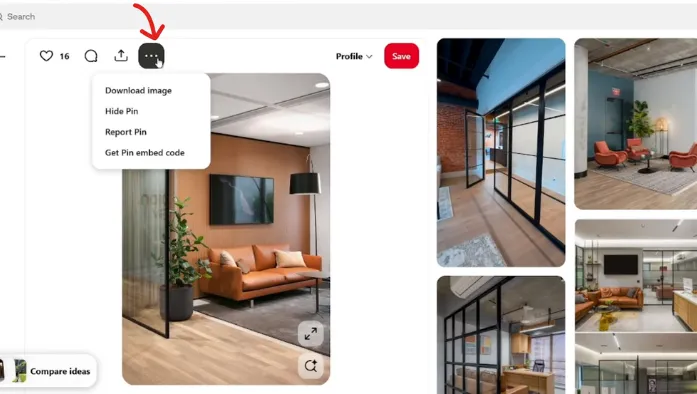
If a download option appears when you open the Pin’s menu, you can use it directly. Follow the prompts shown by Pinterest and then check your phone’s saved media or downloads.
If the result is a still image instead of an animated GIF, use the original Pin link again.
When the Download Option Is Missing
Some Pins don’t provide a direct download option. In this situation, copy the Pinterest link and open it through your mobile browser.
This gives you another way to access the GIF without relying on the download button inside the app.
What If the Pinterest GIF Saves as a Photo?
If the saved file looks like a normal picture, don’t assume the GIF itself is broken. You may have saved the preview image instead of the animated file.
Check the downloaded file before trying another method.
Check the Downloaded File Format
Look at the file details and check its extension. A GIF file normally uses the .gif format. If the downloaded file is JPG or PNG, it is a still image and won’t contain the full GIF animation.
Try the Original Pin Link Again
Go back to the Pinterest Pin and copy its link again. A complete or correct URL helps the downloader locate the right media.
Paste the link into the downloader and check whether a GIF file is offered this time.
Use a Browser Instead of the App
If the Pinterest app keeps saving the wrong file, try opening the Pin in your mobile browser. The browser may give you clearer access to the page and its media.
You can then copy the Pin URL and process it through a downloader.
Alternative Ways to Save Pinterest GIFs
There are other ways to keep a moving version of a Pinterest GIF, but they don’t always produce the same result as downloading the actual GIF file.
Why Screenshots Do Not Save the GIF
A screenshot captures only one moment from the animation. It creates a static image rather than saving all the frames of the GIF.
You can use a screenshot when you only need a particular frame, but it won’t give you an animated GIF.
Why Screen Recording Is Not the Same as Downloading
Screen recording captures what is playing on your screen and usually creates a video file. It doesn’t save the original GIF format.
If you need an actual GIF file, downloading the animated file is the better option.
Where Is the Saved Pinterest GIF?
After downloading a GIF *with our Pinterest Downloader* , finding it depends on which device you’re using and how your browser handles downloads.
If you can’t see the file immediately, check your downloads folder or recent files.
Finding GIFs on iPhone
On iPhone, downloaded files are commonly available through the Files app. Open Files and check the Downloads folder or the location selected by your browser.
If the GIF was saved to your Photos app instead, check your recent photos and videos.
Finding GIFs on Android
On Android, open the Files or My Files app and check the Downloads folder. Some devices may also place supported media in a gallery or photos app.
If you can’t find the GIF, use your file manager’s search feature and look for files ending in .gif.
Pinterest GIF Download Problems and Fixes
A GIF downloader may not work perfectly every time. Most problems are related to the Pinterest link, the media format, or the download process.
GIF Is Not Loading
Check your internet connection and make sure the Pinterest Pin still opens. Then copy the Pin link again and try processing it one more time.
If the Pin itself doesn’t load, the downloader may not be able to access the media either.
Download Is Not Starting
If tapping the download button does nothing, refresh the page and try again. You can also switch between your phone’s browser and another browser to see if the download starts correctly.
Make sure your browser allows downloads and has enough available storage.
Saved File Is Not Animated
If the saved file opens as a still picture, check its file extension. A JPG or PNG file won’t play like a GIF. Try processing the original Pinterest link again and select the animated GIF file if more than one download option is available.
Pinterest Says the Pin Cannot Be Downloaded
Some Pinterest content may not be available for direct downloading. If the Pin can’t be processed, check whether the link is complete and still active.
You can also try opening the Pin in a browser and copying the URL from there before processing it again.
Conclusion
Saving a GIF from Pinterest to an iPhone or Android is easier when you start with the correct Pin link. Copy the URL, paste it into a compatible downloader, and check the downloaded file to make sure it remains an animated GIF.
If Pinterest saves only a photo, check the file format and try the original Pin link again. For the best result, save the actual GIF file rather than relying on screenshots or screen recordings.

One Comment