Understanding Image Resolutions: How to Ensure Your Pinterest Downloads Are HD Quality
You save a photo from Pinterest, expecting a crisp, high-quality image. Instead, you open it later and find something blurry, pixelated, or noticeably smaller than what you remember seeing on the app.
This happens more often than you’d think, and it almost always comes down to image resolutions. Understanding how resolution actually works helps you avoid this problem entirely and get real HD quality every time you download from Pinterest.
What Image Resolution Actually Means
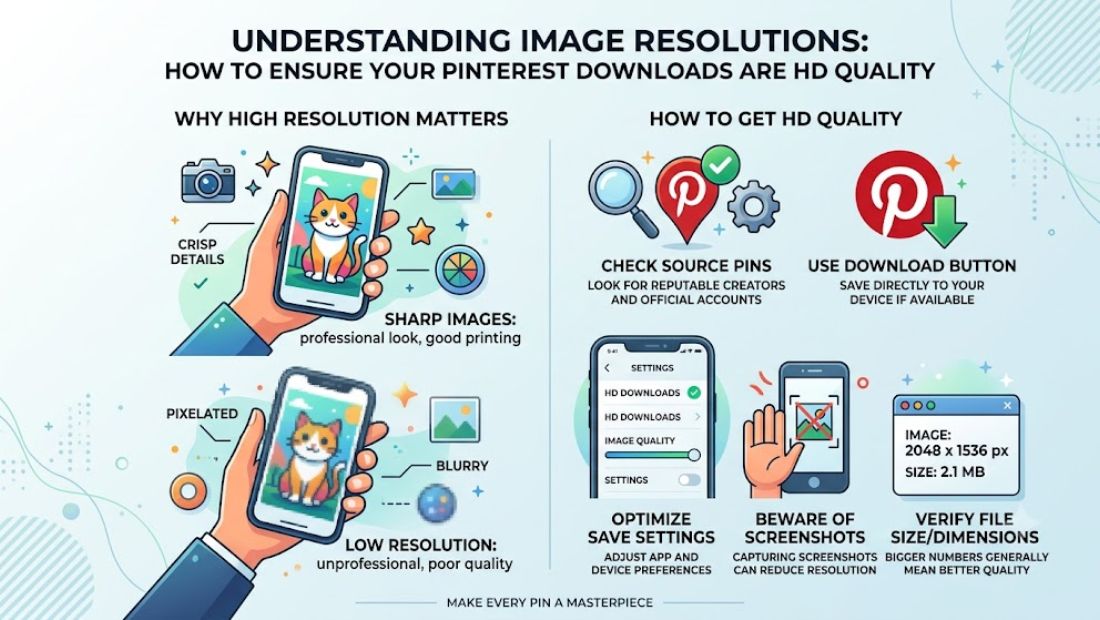
Resolution refers to how many pixels make up an image, usually described as width by height, like 1080 x 1080. More pixels mean more detail, sharper edges, and an image that holds up even when you zoom in or print it.
Lower resolution images pack fewer pixels into the same space. Your device stretches those limited pixels to fill the screen, and that stretching is exactly what causes the blur or graininess you notice.
Think of it like a photo made of tiny tiles. More tiles create a smoother, more detailed picture. Fewer tiles leave visible gaps that your eye reads as blurriness.
Why Pinterest Compresses Images in the First Place
Pinterest handles millions of images every day, and loading full-resolution files for every single pin would slow the app down significantly. To keep things fast, Pinterest automatically compresses images for browsing and preview purposes.
This compressed version is what you typically see while scrolling. It looks fine on a small screen, but it’s not the same file the original creator uploaded.
The original, uncompressed file often still exists on Pinterest’s servers. You just need the right approach to reach it instead of grabbing the compressed preview.
How Compression Affects Your Pinterest Downloads
When you screenshot an image or save it directly from your browser, you’re capturing whatever version Pinterest displayed at that moment. Most of the time, that’s the compressed preview, not the source file.
This creates a few noticeable problems with your Pinterest downloads:
- Softer details that look slightly out of focus, especially on close inspection
- Visible pixelation when you zoom in or view the image at full size
- Smaller file dimensions than the image’s original upload size
- Color banding in gradients, where smooth transitions look blocky instead
For casual scrolling, none of this matters much. For printing, design work, or anything requiring real detail, it makes a real difference.
Understanding Image Resolutions: What Counts as HD
HD generally starts at 1280 x 720 pixels, though most people consider true HD to begin around 1920 x 1080. Anything below that range starts losing the sharpness most people associate with quality images.
Here’s a quick reference for common resolution tiers:
- SD (Standard Definition): Around 640 x 480, noticeably soft on modern screens
- HD: 1280 x 720 to 1920 x 1080, sharp and clear for most everyday use
- Full HD: Exactly 1920 x 1080, the standard for most quality downloads
- 4K: 3840 x 2160, extremely detailed, ideal for printing or large displays
Pinterest images vary widely in their original resolution depending on what the creator uploaded. Not every pin reaches 4K, but most well-uploaded content sits comfortably in HD territory.
How to Get the Highest Quality Pinterest Downloads
Getting a true HD file instead of a compressed copy comes down to bypassing the preview version entirely.
Skip the Screenshot Method
Screenshots capture your screen exactly as displayed, compression included. This locks you into whatever quality Pinterest showed you at that moment, which is rarely the original resolution.
Avoid Right-Clicking and “Save Image As”
This common browser trick often grabs a cached, lower-resolution thumbnail rather than the source file. It looks like it worked, but the resulting image usually falls short of true HD.
Use a Tool That Pulls the Original File
A proper Pinterest downloader reads the pin’s underlying data and retrieves the actual source file, not the compressed preview. This gives you the same resolution the original creator uploaded, without any extra compression added along the way.
Look for tools that clearly mention preserving original quality or HD downloads specifically. That’s usually a sign they’re pulling source files instead of screen-level previews.
Checking the Resolution of Your Downloaded Image
Once you’ve downloaded an image, you can quickly confirm its actual resolution.
On iPhone or Android, open the Photos or Gallery app, tap the image, and check its details or info panel. It usually displays the exact pixel dimensions.
On a computer, right-click the file and select Properties (Windows) or Get Info (Mac). Look for the dimensions listed under image details.
If the numbers look small compared to what you expected, you likely downloaded a compressed version instead of the original.
Final Thoughts
Getting sharp, detailed images from Pinterest isn’t about luck. It comes down to understanding image resolutions and knowing which download method actually preserves them.
Skip screenshots, skip basic right-click saves, and go straight for tools built to pull original source files. Once you know what to look for, your Pinterest downloads stay exactly as crisp and clear as the day they were uploaded.
Read More:
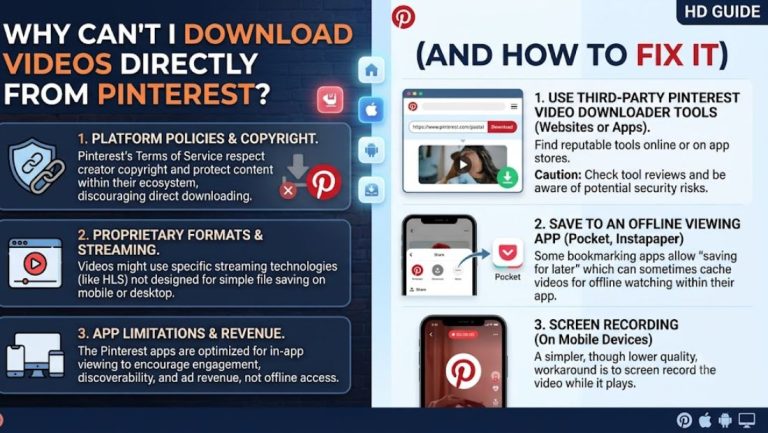
Why Can’t I Download Videos Directly from Pinterest? (And How to Fix It)
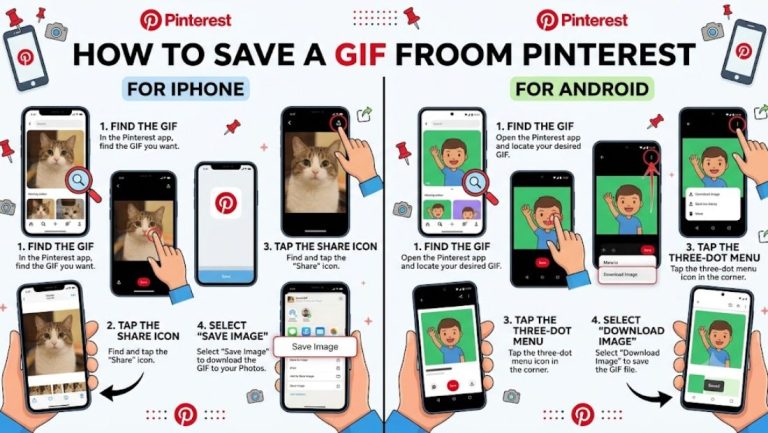
How to Save a GIF from Pinterest to Your iPhone or Android Device